Installation
Requirements
Hardware
| Component | Description |
|---|---|
| Battery | Marstek Venus E v2/v3, Venus A or Venus D |
| Modbus converter | RS485 → Modbus TCP device (e.g. Elfin-EW11) — Venus E v2 only. Venus E v3, Venus A and Venus D connect via Ethernet and support Modbus TCP natively. |
| Grid sensor | HA sensor measuring total grid consumption (e.g. Shelly EM3, Neurio, smart meter integration) |
Software
- Home Assistant 2024.1.0 or later
- (Optional) Solar forecast sensor for predictive charging (Solcast, Forecast.Solar, etc.)
Network
The battery must be reachable from Home Assistant by IP on the same network segment or via routing.
Installation via HACS (recommended)
-
Click the button to add the repository to HACS:

-
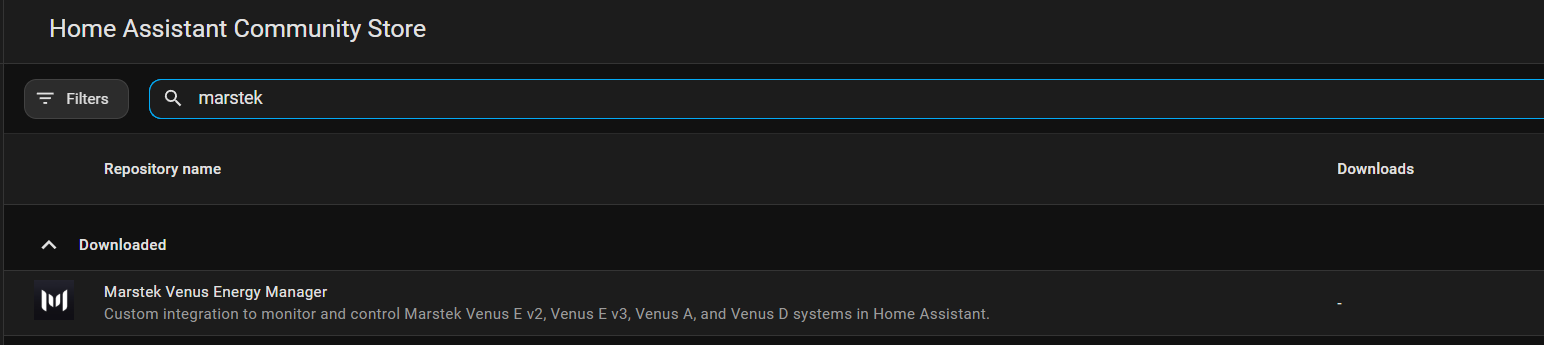
Search for "Marstek Venus Energy Manager" and install.
- Restart Home Assistant.
Manual installation
- Download the zip from the latest release at GitHub Releases.
- Extract the
marstek_venus_energy_managerfolder. - Copy it to the
custom_components/directory of your Home Assistant instance. - Restart Home Assistant.
Blueprint installation
Blueprints are optional and are installed in the Home Assistant configuration folder, not inside custom_components/.
The blueprint folder for your Home Assistant instance is:
If you access Home Assistant through Samba, Studio Code Server or File Editor, the same path is usually shown as:
Install from the Home Assistant UI
- Go to Settings → Automations & Scenes → Blueprints.
- Click Import Blueprint.
-
Paste the URL of the blueprint you want to import, for example:
-
Click Preview Blueprint and then Import Blueprint.
- Create a new automation from the imported blueprint and select your entities.
Manual installation
- Create the
/config/blueprints/automation/marstek_venus_energy_manager/folder if it does not already exist. - Copy the
.yamlfiles from this repository'sblueprints/folder into it. - In Home Assistant, go to Settings → Automations & Scenes → Blueprints and click Reload Blueprints. If the option is not available, restart Home Assistant.
- Create a new automation from the installed blueprint.
Adding the integration
After installing and restarting:
- Go to Settings → Devices & Services.
- Click + ADD INTEGRATION.
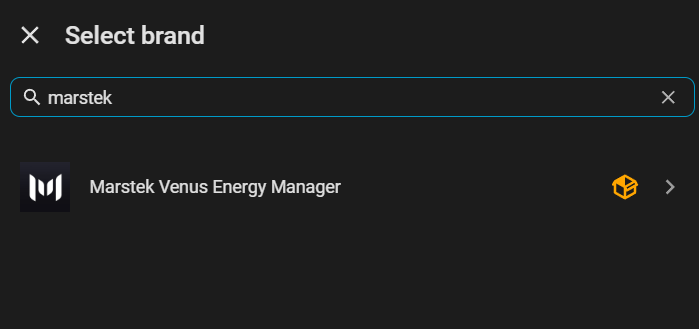
- Search for Marstek Venus Energy Manager.
- Follow the configuration wizard.